Ever wished your favorite new game or a massive update was already downloaded and ready to play the moment you walked through your door after a long day? For the modern gamer balancing work, family, and precious leisure time, waiting for large game files to download can feel like an eternity, cutting into valuable play sessions. Fortunately, Steam offers a robust remote download feature that empowers you to initiate game installations or updates from virtually anywhere, ensuring your PC is primed for action when you finally settle in. This guide will walk you through everything you need to know about how you can remotely download games on Steam, covering setup, troubleshooting, and best practices. Discover how this convenient functionality can transform your gaming routine, making every moment you dedicate to your passion more efficient and enjoyable. We will explore the tools you need, the steps to take, and common questions, all designed to make your gaming life smoother and more connected.
Can you start a Steam download remotely?
Absolutely, yes! Steam offers a fantastic feature that allows you to initiate game downloads or updates on your home PC from anywhere using your smartphone or a web browser. This means you can get a game downloading while you're at work, commuting, or even just relaxing in another room, so it's ready when you want to play.
What do I need to enable remote downloads on Steam?
To enable remote downloads, ensure your gaming PC is powered on, connected to the internet, and has the Steam client running and logged into your account. Then, you'll use either the official Steam mobile app on your smartphone/tablet or a web browser logged into the Steam website to send the download command.
How do I remotely download a game using the Steam app?
Open the Steam mobile app, log in, go to your Library, and find the game you want. Tap the 'Install' button. If you have multiple PCs, it will ask which one to install to. Confirm your choice, and the download command will be sent to your PC, starting the installation or update.
Does my PC need to be on to remotely download Steam games?
Yes, your PC must be powered on and have the Steam client running in the background for remote downloads to work. If your PC is off or in a deep sleep state, the remote command cannot reach it to initiate the download.
Are there any costs for using Steam's remote download feature?
No, there are no additional costs or fees associated with using Steam's remote download feature. It's a free, built-in functionality available to all Steam users, designed to enhance convenience and efficiency for managing your game library.
How exactly can Steam remotely download games for me?
Yes, Steam allows you to remotely download games to your PC from anywhere using the Steam mobile app or a web browser. This feature lets you queue up game installations or updates even when you are away from your computer, ensuring your games are ready to play the moment you get home.
What are the essential requirements to set up Steam remote downloads?
To enable remote downloads, your gaming PC must be powered on and running the Steam client. It needs an active internet connection, and you must be logged into your Steam account. Additionally, you'll use either the Steam mobile app on your smartphone or a web browser logged into the Steam website.
Is there a specific setting I need to enable on my PC for this feature?
Yes, ensure your Steam client on your PC is set to "Allow downloads during gameplay" or at least "Always keep games up to date." While not strictly for remote initiation, having Steam running and logged in is key. The remote command sends a signal to your active Steam client.
How reliable is Steam's remote download functionality in practice?
Steam's remote download functionality is generally very reliable. As long as your PC maintains power and an internet connection, and the Steam client is running, the commands from your mobile device or web browser should execute without issues. Occasional network interruptions or PC shutdowns are the main points of failure.
Can I remotely pause or cancel a download once it has started?
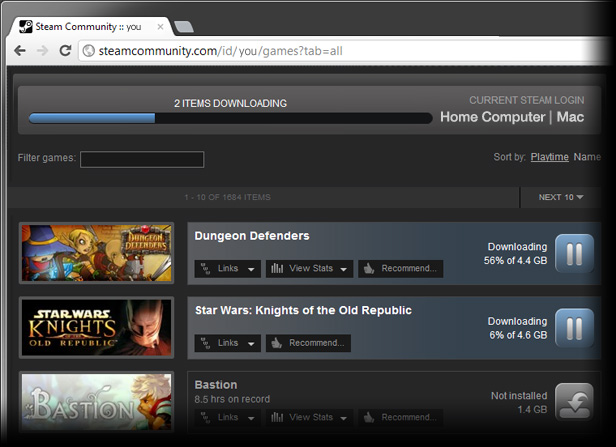
Absolutely. Just as you can initiate a download remotely, you can also manage it. From the Steam mobile app or the Steam website's download page, you can see the progress of your active downloads and choose to pause or cancel them, offering complete control over your game library from afar.
What happens if my PC goes offline during a remote download?
If your PC goes offline during a remote download, the download will simply pause. Once your PC is back online and the Steam client is running, the download should automatically resume from where it left off, assuming you haven't cancelled it manually. Steam is designed to handle such interruptions gracefully.
Are there any data usage considerations for remote downloads, especially on limited mobile data?
While you initiate the download remotely using minimal data, the actual game download happens on your home internet connection, not your mobile data. So, the data usage impact is on your home ISP data cap. Be mindful of game sizes if you have a capped home internet plan; modern games can be hundreds of gigabytes.
Life moves fast for many of us. You clock out from work, pick up the kids, maybe squeeze in a quick workout, and by the time you finally settle down, all you want to do is jump into that new open-world RPG or catch up with your squad in the latest online shooter. But then you remember: that game has a 100 GB update, or you just bought a new title that needs to download from scratch. Suddenly, your precious gaming window shrinks as you stare at a progress bar. Sound familiar?
You are not alone. According to recent US gaming statistics, the average gamer, often around 36 years old, spends over 10 hours a week immersed in digital worlds, actively seeking relaxation, skill-building, and social connection. For this demographic, time is a premium, and efficiency is key. This is exactly where the question, "can Steam remotely download game?" becomes a game-changer. Imagine initiating a massive download during your lunch break, knowing it will be ready to launch the second you boot up your PC at home. Steam’s remote download feature isn't just a convenience; it's an essential tool for maximizing your limited gaming hours and ensuring your virtual adventures are always just a click away.
This comprehensive guide will demystify Steam's remote download capabilities, providing you with all the knowledge to set it up, troubleshoot common issues, and make the most of this powerful feature. We are here to help you turn those potential waiting times into immediate playtime, making your gaming life smoother and more enjoyable.
How can Steam Remotely Download Game Files to My PC?
Steam’s remote download functionality works by allowing your Steam account, logged in on a mobile device or web browser, to send commands to your gaming PC. For this to happen, your home PC must be powered on, have the Steam client running in the background, and maintain an active internet connection. When you select a game to install or update from your remote device, the Steam servers relay that command to your PC, which then initiates the download as if you were sitting right in front of it. It is a seamless process designed for convenience.
What are the Essential Requirements to Enable Steam Remote Downloads?
To successfully leverage Steam’s remote download feature, a few key conditions must be met. First, your gaming PC needs to be turned on and awake, not in sleep mode or shut down. Second, the Steam client application must be running on that PC, and you must be logged into your Steam account. Third, both your PC and the remote device (smartphone, tablet, or another computer) need stable internet connections. Finally, you’ll use either the official Steam mobile app or a web browser to access the Steam website and your game library. Ensuring these elements are in place is crucial for a smooth experience.
Is My PC Always On for Remote Downloads, and Does it Consume Much Power?
Yes, for Steam to remotely download games, your PC must be powered on and the Steam client active. It cannot initiate downloads if your computer is off or in a deep sleep state. However, you can configure your PC's power settings to stay awake while idle or only allow it to enter a lighter sleep mode that still permits network activity and Steam to function. Power consumption will be higher than if the PC were off, but significantly less than when actively gaming. Many gamers find this a small trade-off for the massive convenience of having games ready. Consider using power-saving modes or scheduled shutdowns if you are highly conscious of energy usage.
How Do I Initiate a Remote Download Using the Steam Mobile App?
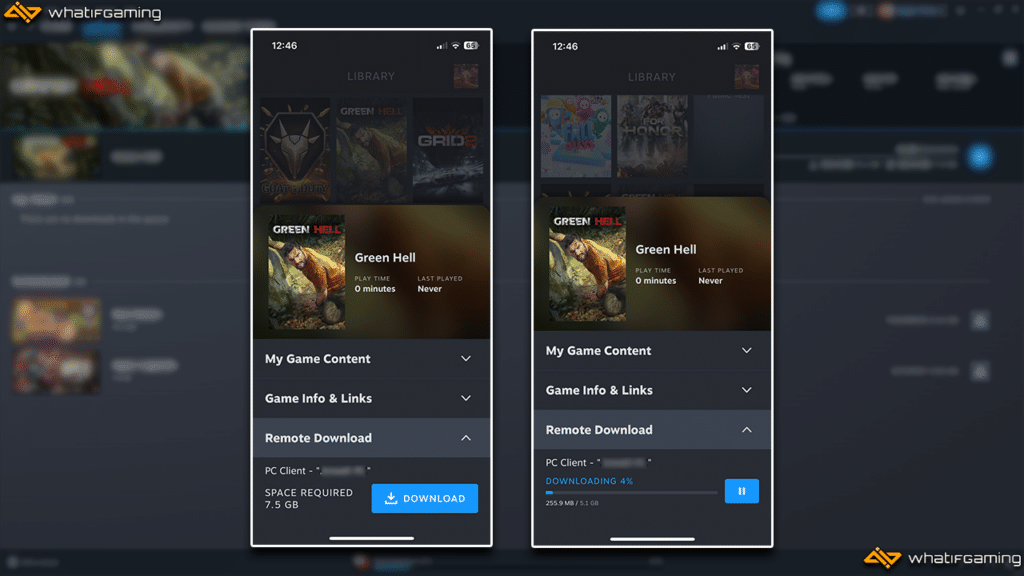
Initiating a remote download through the Steam mobile app is incredibly straightforward. After launching the app and logging into your Steam account, navigate to your Library. Browse or search for the game you wish to download. If the game is not installed on your PC, you will see an 'Install' button. Tapping this will bring up a prompt asking which PC you want to install it on (if you have multiple Steam-enabled PCs). Select your desired computer, confirm, and the download command will be sent. You can also monitor the download progress directly from the app.
Can I Manage Multiple Remote Downloads and Updates Simultaneously?
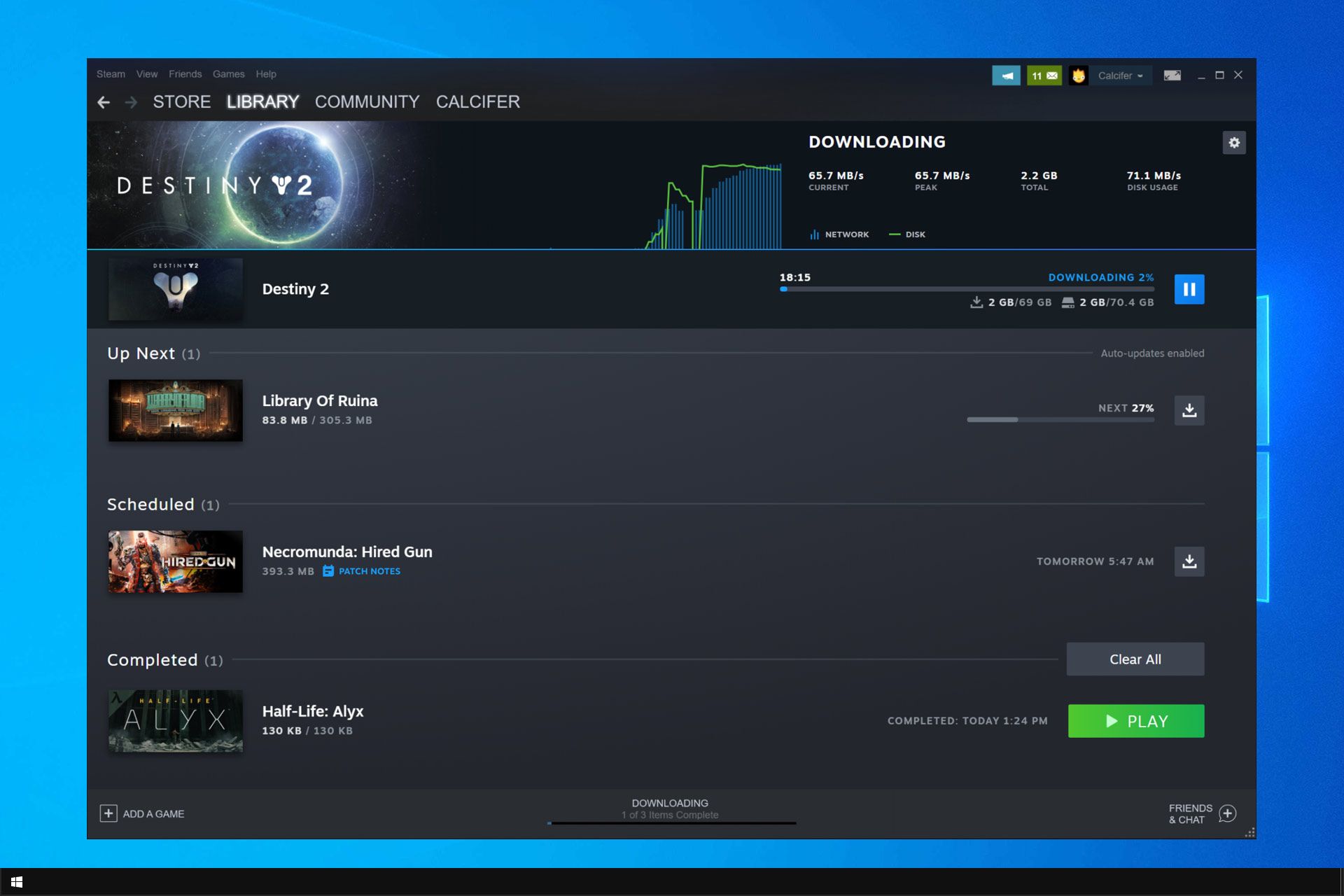
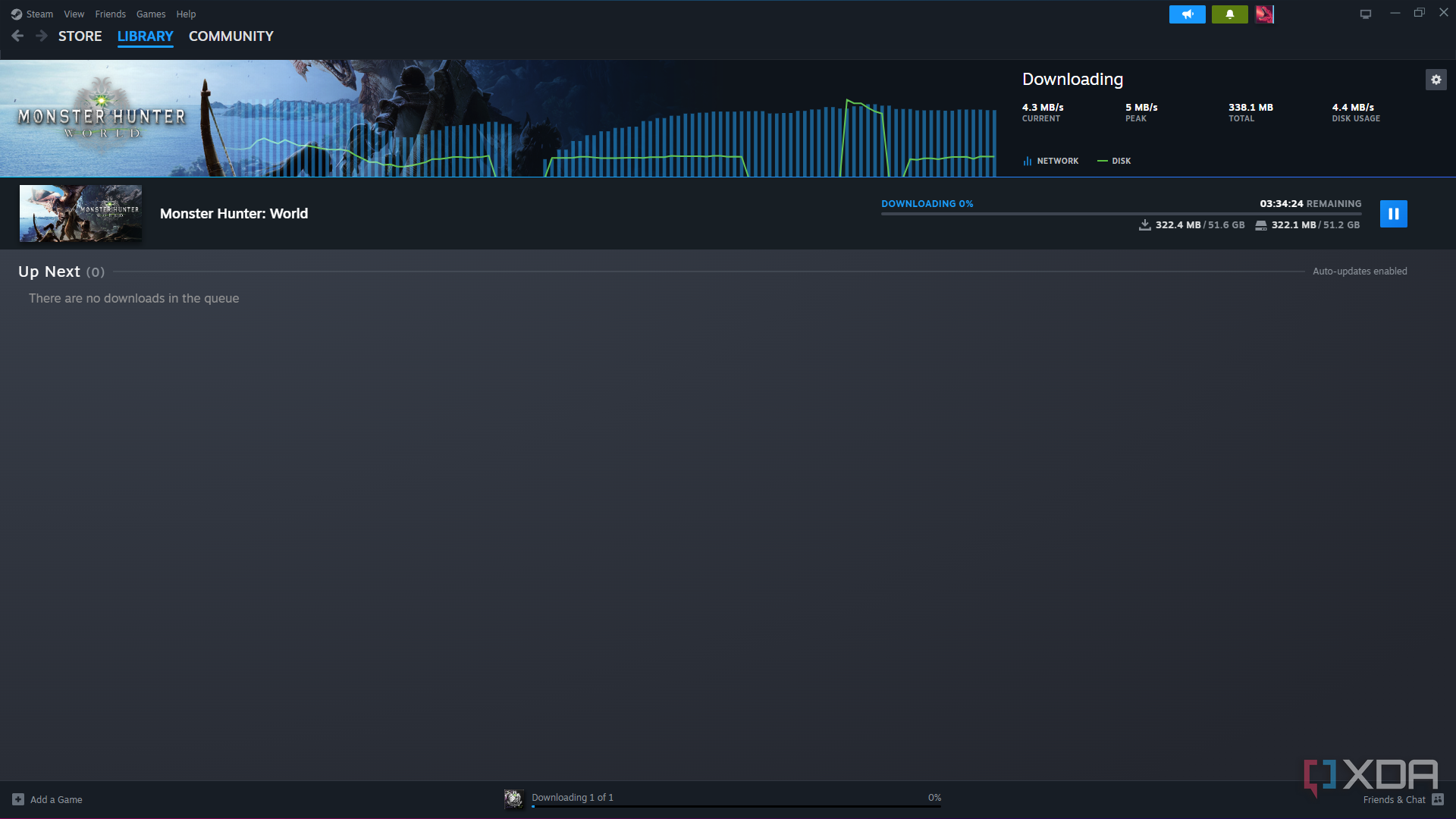
Yes, Steam's remote download system allows you to manage multiple items. Once you've initiated a download, it will appear in your PC's download queue. You can then go back to your library in the mobile app or browser and select another game to download; it will be added to the queue. Similarly, you can remotely trigger updates for games already installed on your PC. The Steam client on your PC will handle the queue order based on your settings, allowing you to prioritize downloads if needed. This is fantastic for staying on top of the latest content drops for all your favorite titles.
What If My Remote Download Fails or Pauses Unexpectedly?
Occasionally, a remote download might fail or pause. The most common culprits are a loss of internet connection on your home PC, your PC going into sleep mode, or the Steam client being closed. If this happens, first ensure your PC is on and connected to the internet. Restarting the Steam client on your PC can often resolve minor glitches. If the issue persists, check your router and firewall settings, as they might be blocking Steam's connection. Sometimes, simply trying to resume the download from your remote device or checking the Downloads tab in the Steam client on your PC will provide more specific error messages.
Are There Any Limitations to Remote Downloading on Steam I Should Know About?
While powerful, Steam's remote download feature does have a few limitations. As mentioned, your PC must be powered on and running the Steam client – it's not a magic 'wake-on-LAN' solution for downloading games. You also need sufficient free disk space on your PC for the game. If your drive is full, the download will not proceed. Additionally, any local network issues, such as a dropped Wi-Fi connection or a power outage at home, will interrupt the process. The feature relies entirely on your home PC's availability and connectivity, so consistent power and internet are paramount.
How Does Remote Downloading Save Time for Busy Gamers Like Me?
For the average US gamer, who often juggles work, family, and other commitments, time is a precious commodity. Remote downloading on Steam directly addresses this pain point by eliminating dead time. Instead of waiting an hour for a game to download after you've finally sat down, you can trigger that download during your commute, a work break, or while running errands. This means when you're ready to game, your game is ready too. It’s about optimizing your limited free time, letting you jump straight into the fun, build skills, or socialize with friends without delay. This efficiency aligns perfectly with modern gaming habits, where 87% of gamers regularly engage with their hobby and mobile device integration is increasingly common.
Can I Remotely Update My Existing Steam Games, Not Just Install New Ones?
Absolutely! The remote download feature isn't just for fresh installations. You can just as easily use the Steam mobile app or web interface to queue up updates for games you already have installed on your PC. This is incredibly useful for staying current with large patches or seasonal content updates that can often run into tens of gigabytes. By initiating these updates remotely, you ensure your games are always the latest version, preventing unexpected update delays when you next want to play with friends or jump into a new single-player adventure. It is a fantastic way to maintain your game library without constant manual checks.
What Are the Best Practices for Secure Remote Downloads on Steam?
Security is paramount, especially when managing your PC remotely. Always ensure you are using the official Steam mobile app and logging into the legitimate Steam website (store.steampowered.com). Avoid public Wi-Fi networks for logging into sensitive accounts if possible, or use a VPN for added security. Enable Steam Guard two-factor authentication on your account; this adds an extra layer of protection, requiring a code from your mobile device every time you log in from a new location. Keeping your PC's operating system and antivirus software up to date also contributes to overall security, protecting against potential vulnerabilities.
How Does Steam's Remote Download Compare to Other Gaming Platforms?
Steam's remote download feature is quite robust and user-friendly, setting a high standard. Most major platforms, including PlayStation, Xbox, and Nintendo, offer similar remote download capabilities, typically through their respective mobile apps or web portals. The core functionality—sending a download command to a console/PC that is online and in a low-power state—is largely consistent. However, Steam often gets praise for its extensive library, frequent updates, and the seamless integration between its desktop client, mobile app, and web interface, making its remote download experience feel particularly refined for PC gamers. While console remote downloads are common, Steam's deep PC integration and broad game selection give it an edge in the PC gaming space, particularly for those who juggle multiple titles and frequent updates.
What Role Does Cloud Saves Play with Remote Downloads?
Cloud saves are a fantastic companion to remote downloads, especially for gamers who might have multiple PCs or reinstall games frequently. While remote downloading ensures the game files are on your hard drive, Steam Cloud saves automatically store your game progress, settings, and other data on Steam's servers. This means that if you remotely download a game to a newly set up PC, or reinstall it after a drive swap, your save data is automatically synced once the game launches. This synergy ensures not only that your games are ready to play, but that your progress is always intact, allowing you to pick up exactly where you left off, regardless of which PC you're using or when you last played. It exemplifies the seamless experience modern gamers expect and value for money.
Conclusion
The ability to remotely download games on Steam is more than just a neat trick; it is a fundamental tool for the modern gamer. By empowering you to manage your game library from afar, Steam helps you reclaim precious minutes, ensuring your digital adventures are always primed and ready when your real-world commitments allow. From new releases to essential updates, this feature streamlines your gaming experience, letting you jump straight into the fun, build skills, or connect with friends without the frustration of waiting. Embrace the convenience and make every gaming session count. What's your biggest gaming challenge that remote downloads could solve? Comment below and share your thoughts!
FAQ Section
What is the primary benefit of Steam remote downloading?
The main benefit is convenience: you can start downloading games or updates to your home PC from anywhere, so your games are ready to play the moment you return home, maximizing your limited gaming time.
Does Steam remote download work if my PC is asleep or off?
No, your PC must be powered on and the Steam client actively running for remote downloads to initiate and proceed. If your PC is in a deep sleep or powered off, the download command will not execute.
Is a specific Steam client setting required for remote downloads?
While not a direct 'remote download toggle,' ensure your Steam client is set to 'Always keep games up to date' and is running. Being logged in is the most critical PC-side requirement.
Can I use a web browser instead of the Steam mobile app for remote downloads?
Yes, you can use any web browser to log into the official Steam website, navigate to your library, and initiate remote downloads to your registered PCs, just like with the mobile app.
What internet speed is recommended for efficient remote downloading?
While any speed works, a fast, stable home internet connection (e.g., fiber or high-speed cable) is highly recommended for efficient remote downloads, especially for large modern games that can be hundreds of gigabytes. This ensures quick download times.
Can I specify where a game installs if I have multiple drives remotely?
Yes, when you initiate a remote download via the Steam app or website, if you have multiple Steam Library Folders set up on different drives on your PC, you will often be prompted to select the desired installation location before the download begins.
Steam remote download setup, Steam mobile app game installation, web browser remote Steam control, PC power and internet requirements for remote downloads, managing game updates remotely, troubleshooting Steam remote download issues, benefits for busy gamers.
35

Steam April 2026 Client Update Adds Remote Downloads Management Steam Client April 2026 1536x864 . How To Remotely Download Steam Game With Phone YouTube . Steam Beta Adds Remote Downloads Management. How To Download Games From At Cathy Remington Blog How To Download Games From Steam 1695367846 . Steam Beta Adds Remote Downloads Management




Steam Drops Free Download For Gorgeous New 2026 Game . How To Test Out Invite Anyone Remote Play On Steam Lifehacker Images 2.fill.size . The Most Played Games On Steam For 2026 So Far Cheat Code Central Most Played Games Steam 2026 2048x1167 . Steam Download Steam Drops 12 New Free Games You Can Download And Play Resize. Best Remote Game Streaming Software In 2026


Best Remote Game Streaming Software In 2026. Valve Unveils New Steam Hardware For 2026 . January 2026 S Top Selling New Steam Games Revealed 08418405 04a2 47eb B48b 1500x843 . Steam Next Fest February 2026 The 22 Best Game Demos The Best Steam Next Fest Demos 2026 The Punished Backlog Order 2 300x162 . Steam Next Fest 2026 And Beyond All The Dates Details And Everything

Steam Update Adds Battery Indicator For Wireless Gamepads Quick Chat Steam Plain 2025 . 5 Best Ways To Make Steam Downloads Faster 2025 Guide Fossbytes Steam Download Fast 2 1024x474 . How To Play Games Installed On Another Computer Anywhere Steam Remote Play Webpage . 17 Game Gratis Di Steam 2026 Seru Bikin Kamu Ketagihan Jurnal Ngawi 3471022749 . Steam Download Steam Drops 12 New Free Games You Can Download And Play Seven Essential Tips To Speed Up Steam Downloads


All 2026 Steam Fest Dates You Should Watch Out For Gamer Org All 2026 Steam Fest Dates You Should Watch Out For . Tutorial How To Play Steam Games Remotely Enable Remote Play . How To Download Windows Steam Games On Mac Robots Net How To Make Steam Download Faster 2016 1695898531 . Steam Deck Users Can Play Xbox Games Remotely With This Free App L Intro 1761093372 . Remote Play How To Stream Games From Your PC To The Steam Deck PCMag 1



How To Use Steam Remote Play Together With Any Game 2025 Full Guide . 10 Steam Facts You Didn T Know About Remote Download 1024x576 . Steam Remote Play Social Media Share4 . News Steam Remote Downloads Now Available Online . Revamped Steam Mobile App Lets You Sign In With A QR Code And Install 4631581


Steam Posts Sale Dates For The First Half Of 2026 PCWorld Steam Store New Look 2025 . Improve Your Steam Experience 5 . Can You Play Steam Games On Xbox Consoles GAMES IN 2026 . How To Use Steam Link For Remote Play On Your Smartphone Enable Steam Remote Play 3 . Steam Games No Longer Purchasable With PayPal In Most Countries Valve