Unlock the full potential of your Roblox gaming experience by mastering your mic settings. For the average US gamer balancing work and family, clear communication in games like Roblox is essential for social connection and team play. This comprehensive guide dives deep into Roblox mic settings, offering step-by-step instructions to troubleshoot common audio issues, optimize voice chat quality, and ensure your privacy. Discover how to enable voice chat, adjust input and output volumes, and configure advanced preferences to sound crystal clear to your friends. Whether you are strategizing in a competitive game, role-playing with pals, or simply enjoying casual conversation, having perfect audio enhances every moment. Learn to overcome setup challenges and boost your in-game communication without hassle. Stay connected and enjoy a seamless, immersive social gaming environment on Roblox.
Q: What Microphones Are Best for Roblox Voice Chat on a Budget?
A: For budget-conscious gamers, a good USB desktop microphone like the Blue Yeti Nano or Fifine K669B offers excellent quality without breaking the bank, often costing less than 60. Alternatively, many gaming headsets from brands like HyperX, SteelSeries, or Corsair provide integrated microphones that deliver clear audio for around 70-100, offering great value for both sound and communication.
Q: How Do I Test My Microphone Before Playing Roblox?
A: Before diving into Roblox, you can test your mic through your operating system's sound settings. On Windows, go to Sound Settings, then under Input, you should see an input level meter responding to your voice. Mac users can find this in System Settings > Sound > Input. Additionally, using a voice recording app or Discord's mic test feature in User Settings > Voice & Video is a reliable way to check your mic's functionality and sound quality.
Q: Can I Use a Virtual Audio Cable for Roblox Mic Settings?
A: Yes, advanced users can employ virtual audio cables (like VB-Cable) to route and manipulate their audio, which can impact Roblox mic settings. This is particularly useful for streamers or content creators who want to mix multiple audio sources, apply specific effects, or manage their sound more intricately before it reaches Roblox. However, it requires a bit more technical know-how to set up correctly.
Q: Does Roblox Voice Chat Use a Lot of Internet Bandwidth?
A: Roblox voice chat, while contributing to bandwidth usage, is generally optimized and does not consume a significant amount compared to streaming video or large game downloads. It uses a relatively small stream of data, meaning it's unlikely to be the primary cause of high latency or bandwidth issues for most users with a stable internet connection. Focus on overall connection stability for best performance.
Q: What Should I Do if My Roblox Voice Chat is Too Quiet?
A: If your Roblox voice chat is too quiet, first increase your microphone's input volume in your operating system's sound settings (Windows: Sound Settings > Input > Device Properties; Mac: System Settings > Sound > Input). You might also need to enable or adjust "Microphone Boost" if available in your sound card's settings. Ensure you're speaking directly into the microphone and check for any physical mute buttons on your headset.
Q: Is It Possible to Record Roblox Voice Chat?
A: Roblox itself does not have an built-in feature to record voice chat. However, you can use third-party screen recording software (like OBS Studio, NVIDIA ShadowPlay, or Xbox Game Bar on Windows) that captures game audio, including voice chat, along with your gameplay. Always be mindful of privacy and consent when recording conversations with other players, as this practice can have legal and ethical implications.
Q: How Can I Improve My Voice Chat Quality in Roblox Without Buying a New Mic?
A: To improve voice chat quality without new hardware, optimize your environment: reduce background noise, speak clearly and at a consistent distance from your mic. In your system's sound settings, enable noise suppression or echo cancellation if your audio drivers offer them. Keep your audio drivers updated, and ensure your internet connection is stable. These software and environmental tweaks can make a big difference.
The gaming world for adults is a dynamic space where relaxation, skill-building, and social connection intertwine. For many US gamers, balancing a full-time job, family responsibilities, and a passion for gaming means every minute in a virtual world like Roblox counts. Social interaction is paramount, with recent data showing 87% of US gamers regularly engaging in online multiplayer, often spending upwards of 10 hours a week. A key part of this social fabric is crystal-clear communication, and that’s where mastering your Roblox mic settings becomes indispensable. Imagine trying to coordinate a build, strategize in an intense game, or simply chat with friends when your microphone is cutting out, too quiet, or sending static. It’s frustrating, right? This common pain point can quickly turn a fun escape into a tech headache.
This comprehensive guide is designed for you, the busy gamer who values efficiency and effective solutions. We’ll cut through the technical jargon and provide clear, actionable steps to optimize your Roblox mic settings, ensuring your voice is heard loud and clear. From initial setup and age verification challenges to troubleshooting pesky audio issues and fine-tuning privacy controls, we’ve got you covered. We understand that your gaming time is precious, and fumbling with settings takes away from the fun. By the end of this article, you’ll have all the knowledge to enjoy seamless voice chat, enhance your social play, and dive deeper into the immersive world of Roblox without any microphone hiccups. Let’s get your mic performing perfectly so you can focus on what truly matters: having a great time with your gaming community.
How Do I Enable Voice Chat in Roblox?
Enabling voice chat in Roblox, officially known as Spatial Voice, is the first step to truly social gaming. This feature allows for proximity-based voice communication within supported experiences, making interactions more immersive and dynamic. To get started, you first need to be age-verified. Roblox introduced this measure to create a safer environment for its diverse player base. Users must be 13 years or older to access Spatial Voice. You will need to provide a valid government-issued ID and a selfie to confirm your age through a secure third-party verification service. This process typically takes just a few minutes and is a one-time requirement.
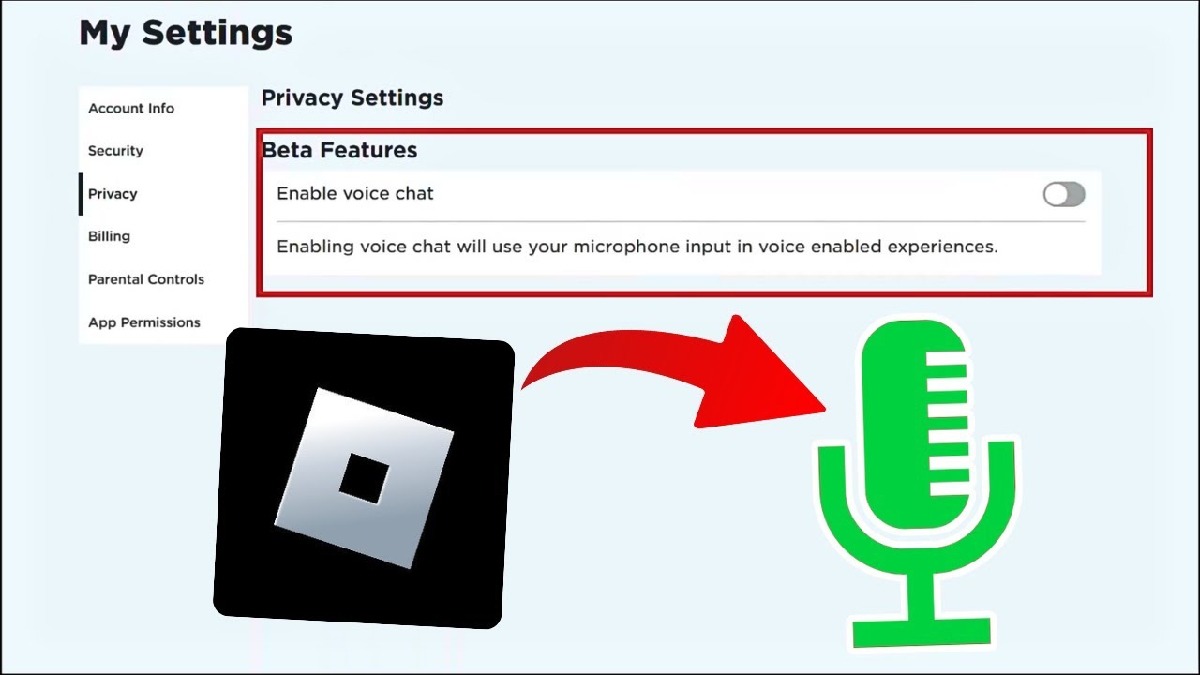
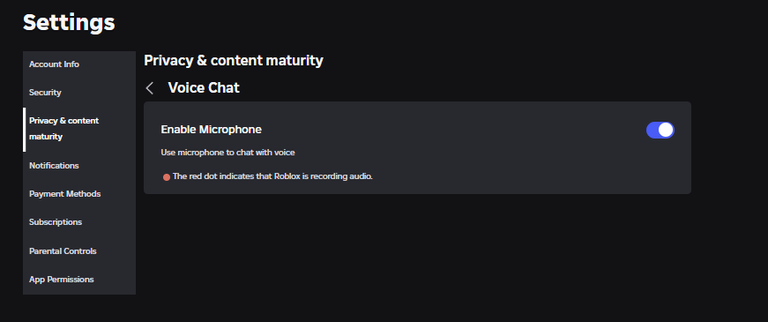
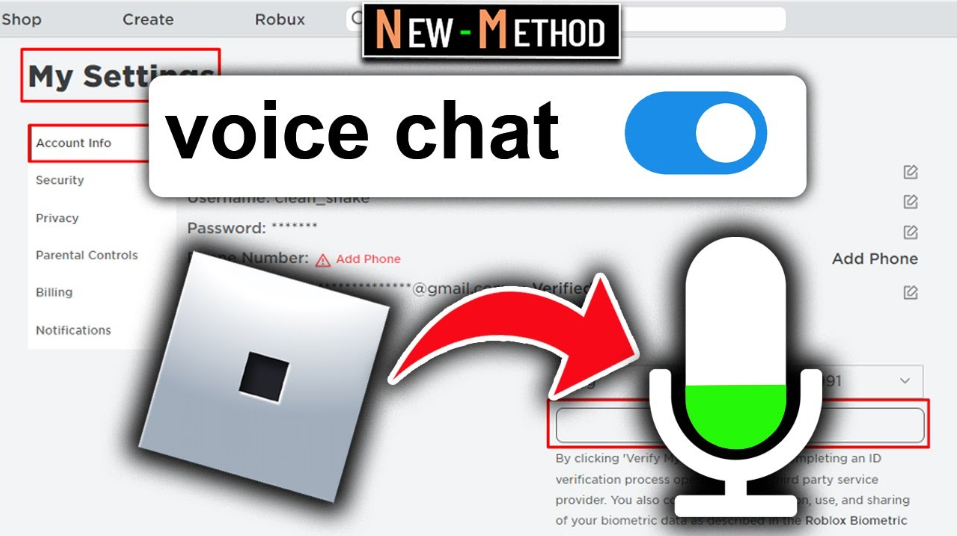
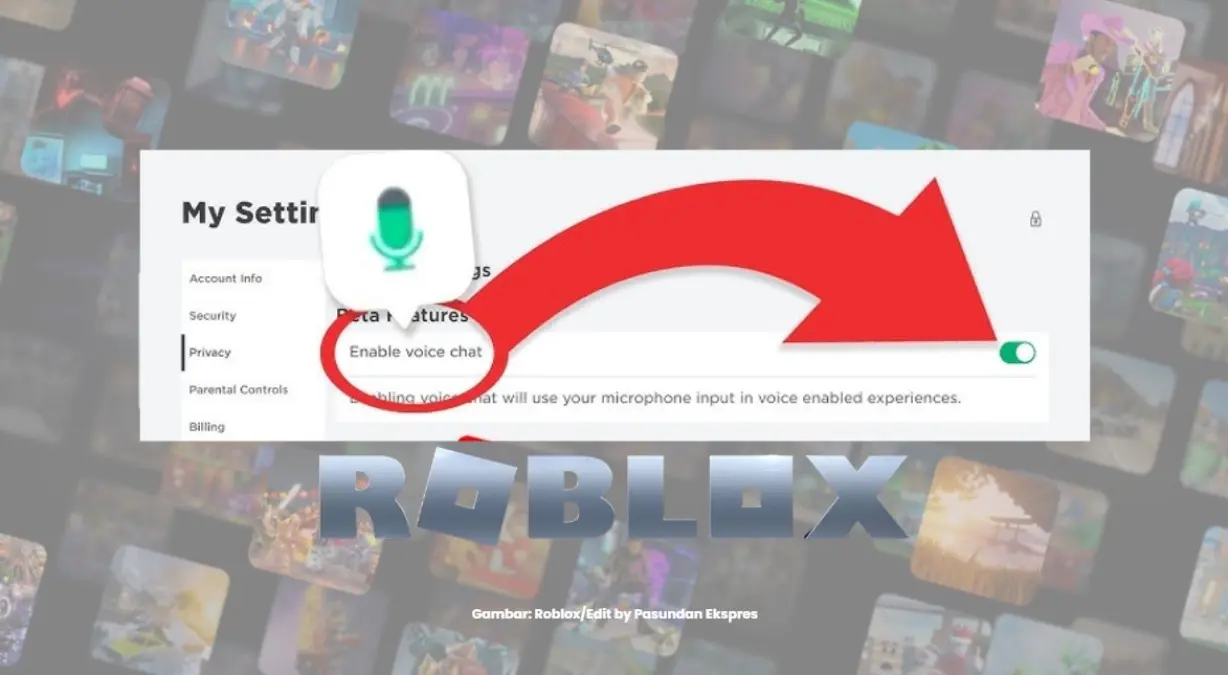
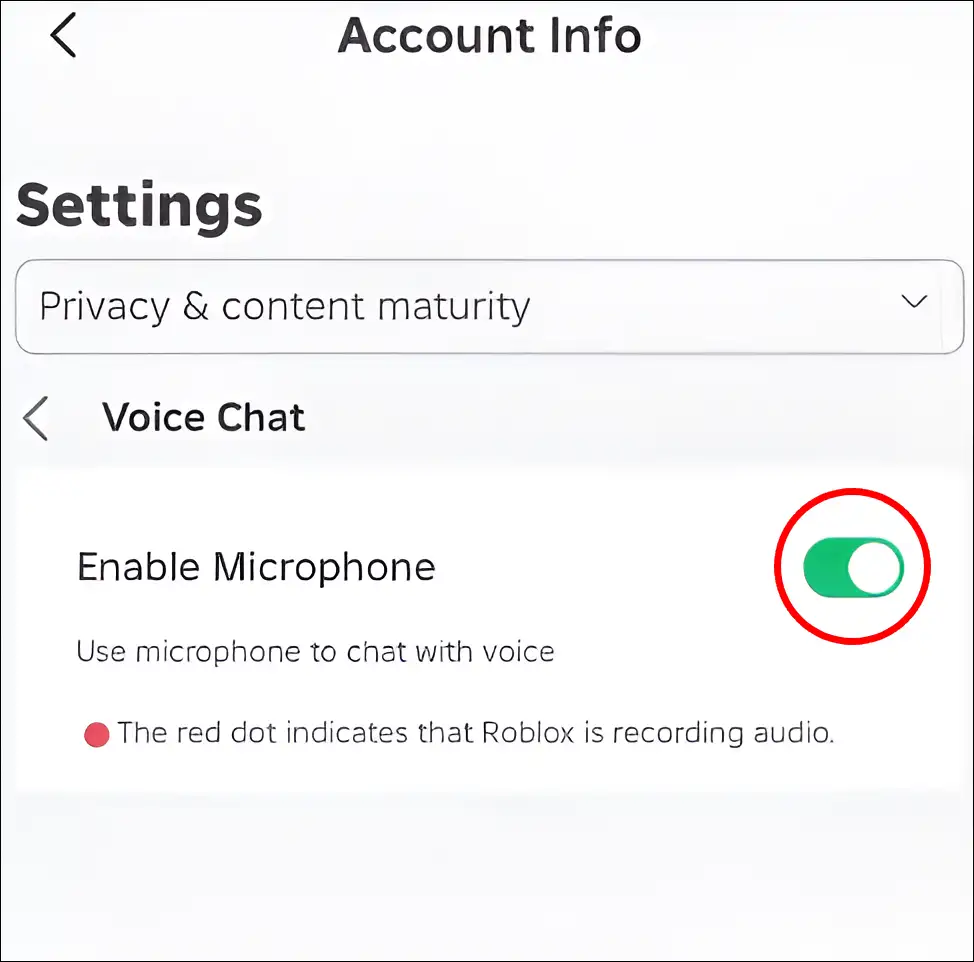
Once age-verified, enabling Spatial Voice is straightforward. Navigate to your Roblox settings by clicking the gear icon in the top right corner of the website or in-game menu. Select "Privacy" from the menu options. Scroll down until you find the "Enable Voice Chat" toggle. Ensure this is switched to the "On" position. Keep in mind that even with voice chat enabled, you will only be able to use it in experiences that have explicitly integrated Spatial Voice. Many popular games now support it, enhancing the social aspect that over 60% of US gamers cherish, often balancing their virtual hangouts with real-world commitments.
What Are the Age Requirements for Roblox Voice Chat?
Roblox takes child safety and user experience seriously, which is why there are strict age requirements for using voice chat. To access Spatial Voice, users must be at least 13 years old. This age gate is enforced through a robust age verification process, a crucial step designed to comply with online safety regulations and foster a more mature communication environment. The verification requires uploading a government-issued photo ID, such as a driver's license, passport, or state ID card. Along with the ID, you'll be prompted to take a live selfie through your device's camera. This two-step verification helps ensure that the ID matches the person attempting to verify their age, preventing fraudulent access.
This stringent process might seem like an extra hurdle for busy adult gamers, but it’s a necessary one. It helps maintain a level of decorum in voice-enabled experiences, aligning with the community values of many gamers who seek relaxation and positive social interactions after a long day. Without age verification, the "Enable Voice Chat" toggle in your privacy settings will remain grayed out or inaccessible. So, if you're keen to jump into verbal communication with your friends in Roblox, prioritizing this one-time verification is essential. It's Roblox's way of ensuring that players can connect safely and appropriately, a trend vital in today's social gaming landscape.
How Can I Adjust My Mic Volume in Roblox?
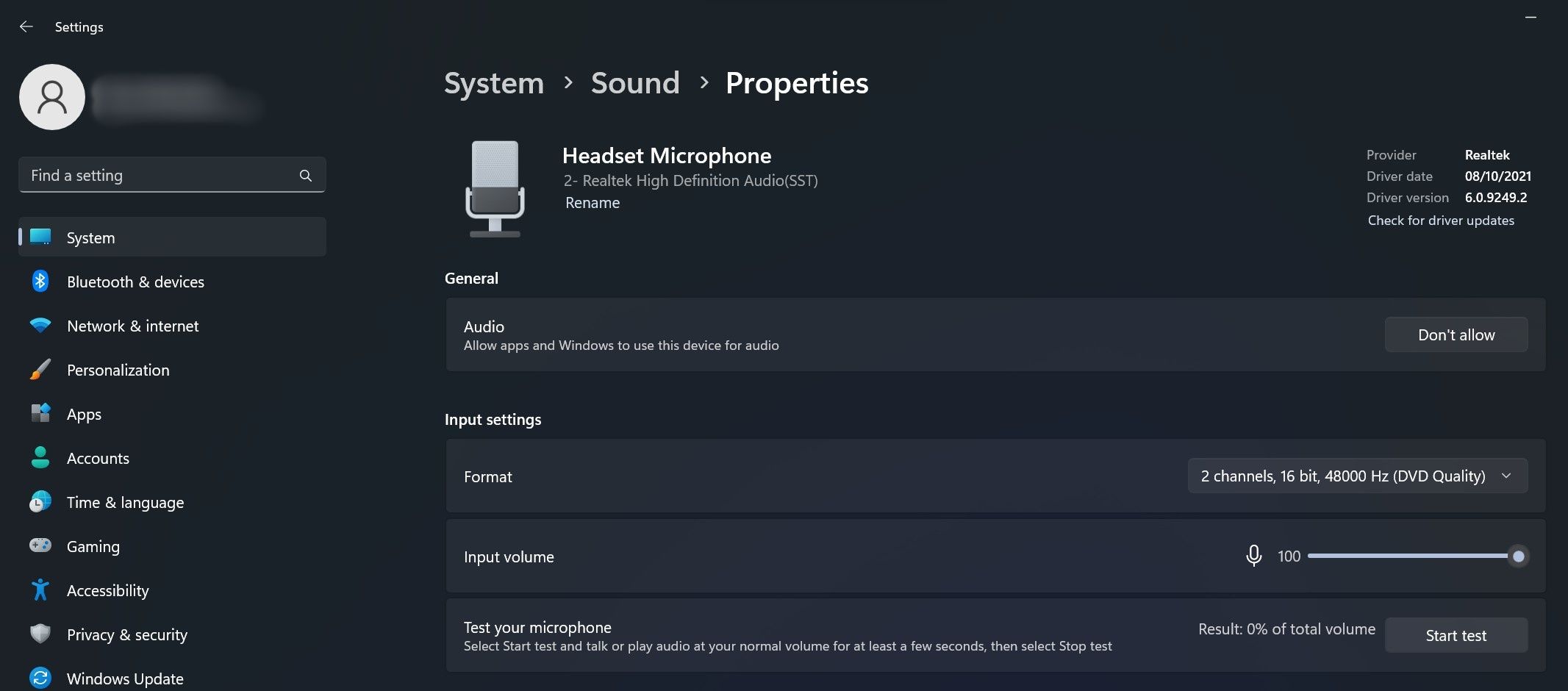
Having your microphone volume just right is crucial for clear communication. Too quiet, and your friends can't hear you; too loud, and you'll be blasting their ears. While Roblox itself offers limited in-game mic volume adjustments, the primary control for your Roblox mic settings typically lies within your operating system's sound settings. For PC users on Windows, right-click the speaker icon in your system tray, select "Sound Settings," then navigate to "Sound Control Panel." Under the "Recording" tab, find your microphone, right-click it, select "Properties," and then go to the "Levels" tab. Here, you can adjust the microphone volume slider and even boost it if necessary.
For Mac users, head to "System Settings," then "Sound," and choose the "Input" tab. Select your microphone from the list and use the "Input volume" slider to fine-tune it. It's often helpful to have a friend in Roblox provide real-time feedback as you adjust. Remember, external hardware like a gaming headset might also have its own volume controls, both for input and output, which can further refine your audio experience. Many gamers, averaging 10+ hours a week, find that optimizing these system-level controls significantly improves their social interactions and overall gaming enjoyment, reducing common performance problems and enhancing team coordination.
Why Is My Roblox Mic Not Working And How To Fix It?
A non-functional microphone in Roblox is a common frustration that can quickly derail your social gaming plans. If your Roblox mic settings seem correct but nobody can hear you, several factors could be at play. First, double-check that Spatial Voice is enabled in your Roblox privacy settings and that you are in an experience that supports it. A fundamental troubleshooting step is to ensure your microphone is properly connected to your computer or device. If it's a USB mic, try unplugging and re-plugging it, or testing it in another USB port. For analog jacks, ensure it's firmly inserted into the correct mic input.
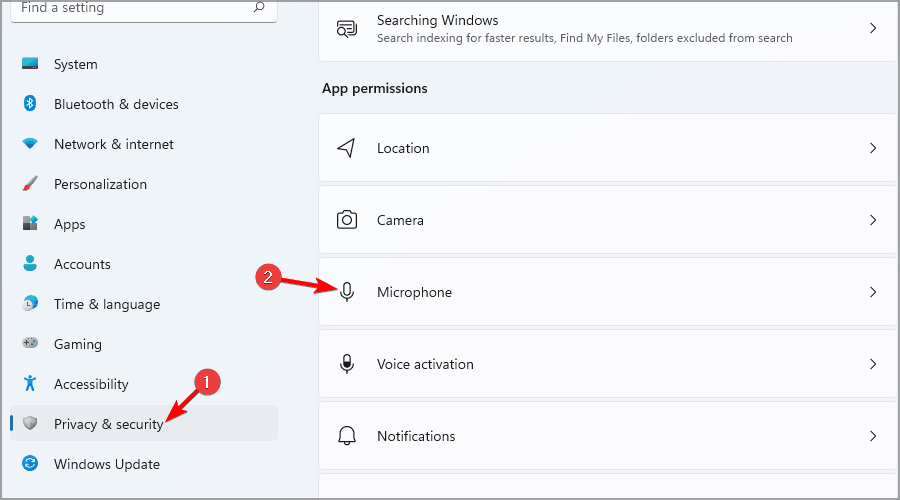
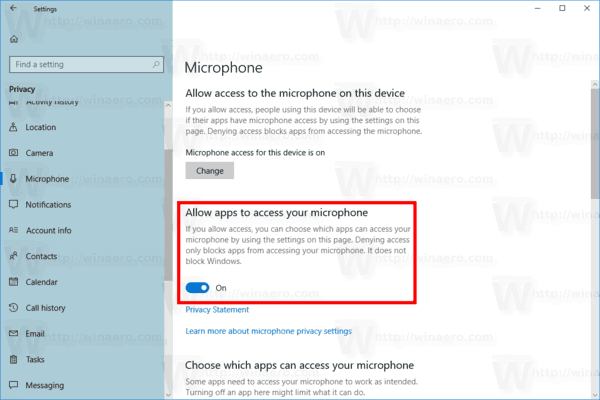
Next, verify that your operating system recognizes the microphone as the default recording device. In Windows, go to "Sound Settings" (as described above), "Sound Control Panel," and under the "Recording" tab, set your preferred mic as default. Mac users should check "System Settings," "Sound," then "Input." Ensure Roblox has permission to access your microphone. On Windows, go to "Settings" > "Privacy & security" > "Microphone" and make sure "Roblox" is allowed. Finally, restart both the Roblox application and your computer. Sometimes, a simple refresh can resolve unexpected driver or software glitches. These steps address typical setup issues that can plague even seasoned gamers, preventing them from enjoying crucial social play.
How Do I Change My Input Device for Roblox Voice Chat?
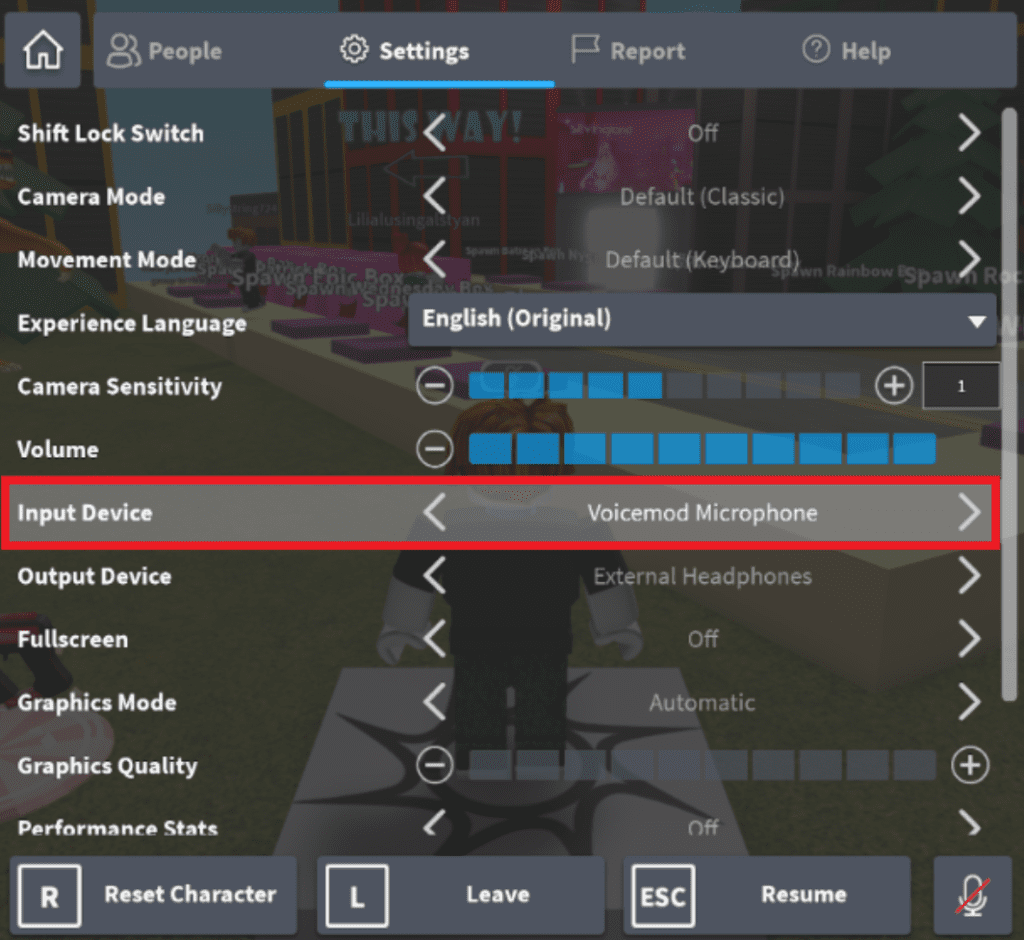
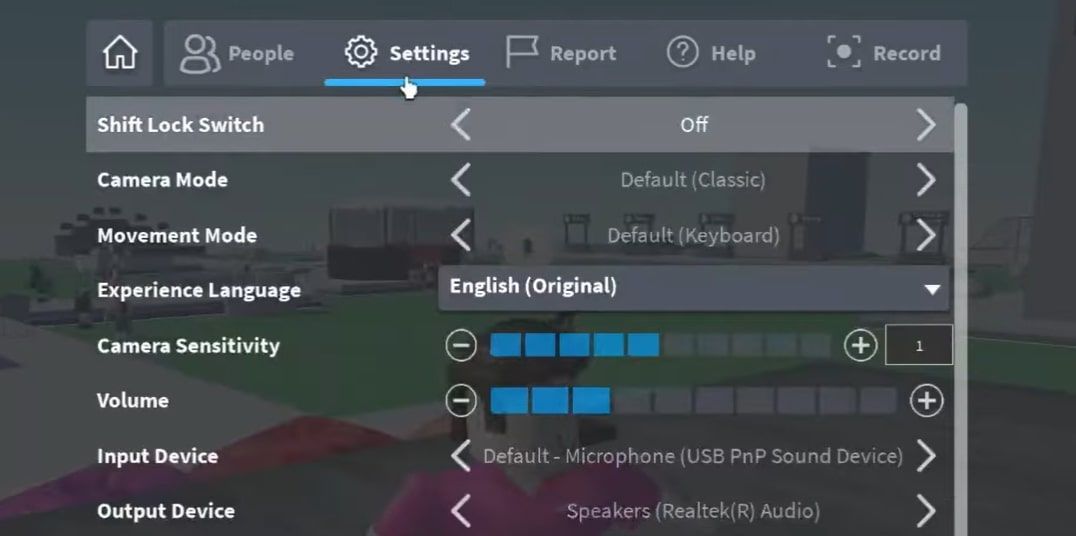
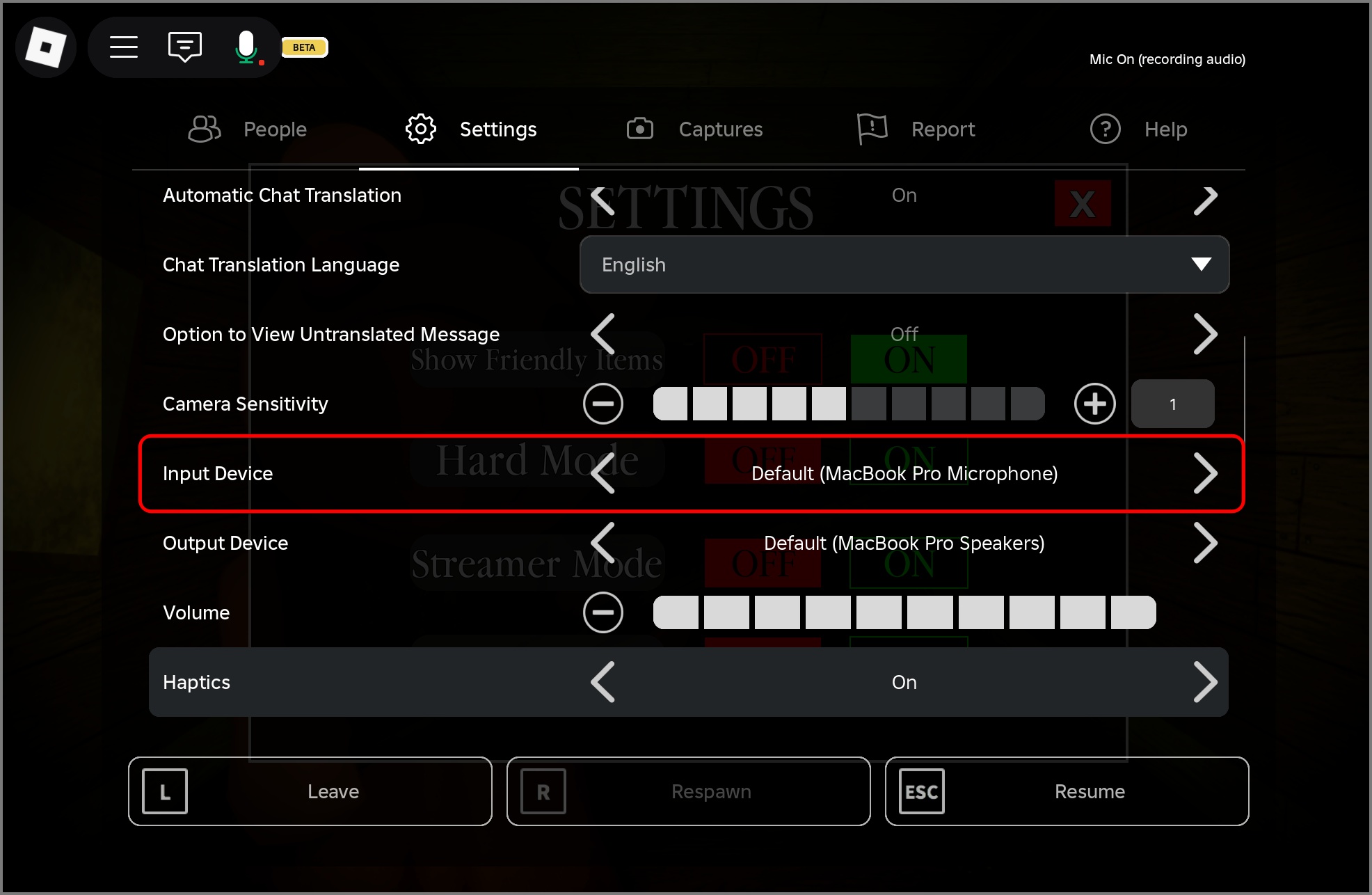
Many gamers use multiple audio devices – a dedicated gaming headset, a webcam microphone, or even a laptop's built-in mic. Ensuring Roblox uses the correct input device is essential for clear communication. While Roblox itself does not offer an in-game dropdown to select specific input microphones, it primarily relies on your operating system's default recording device. Therefore, to change your input device for Roblox voice chat, you need to configure your system's sound settings.
On Windows 10/11, right-click the speaker icon in your taskbar and select "Sound Settings." Under the "Input" section, use the "Choose your input device" dropdown menu to select your preferred microphone. If you need more advanced control, click "More sound settings" (or "Sound Control Panel") to open the classic Sound dialog box. Navigate to the "Recording" tab, select your desired microphone, right-click, and choose "Set as Default Device." This action ensures that Roblox, and most other applications, will automatically use the microphone you've chosen. For Mac users, go to "System Settings" > "Sound" > "Input" and select your desired mic from the list. Making these adjustments ensures you're leveraging your best audio hardware, a key part of performance optimization for gamers on a budget or those looking to get the most out of their existing gear.
What Are Roblox's Privacy Settings for Voice Chat?
Privacy is a paramount concern for all online users, especially for adult gamers who are often managing data across various platforms. Roblox provides robust privacy settings to give you control over your voice chat experience. After enabling Spatial Voice (and age verification), you can further customize who can hear you. In your Roblox "Privacy" settings, look for options related to communication. While there isn't a granular "who can hear my voice" setting like for text chat, you can control who can join your experiences, which indirectly affects who you might voice chat with.
More importantly, if you ever feel uncomfortable in a voice-enabled experience, you can instantly mute other players in-game. Clicking on their avatar or username in the player list often reveals a mute button. If you need a more permanent solution, you can disable Spatial Voice entirely through the Privacy settings toggle. Furthermore, Roblox has a reporting system for inappropriate behavior. If another user is violating the community standards through voice chat, you can report them directly. Staying current with these privacy features is vital, allowing you to enjoy social gaming stress-free and maintain a healthy balance between online interaction and personal boundaries.
Are There Any Advanced Roblox Mic Settings I Should Know About?
While Roblox itself keeps its in-game audio settings fairly streamlined, "advanced" mic settings usually refer to optimizing your microphone through your operating system or external software. For PC gamers, exploring your sound card's control panel (e.g., Realtek Audio Console, NVIDIA Broadcast, SteelSeries GG) can unlock features like noise suppression, echo cancellation, and gain control. These can drastically improve your audio quality, especially if you game in a noisy environment or with an entry-level microphone. Many adult gamers, often balancing busy households, find noise suppression invaluable for ensuring their voice is clear without background distractions.
Another "advanced" consideration is using a push-to-talk (PTT) keybind. While Roblox Spatial Voice currently operates on a voice-activated basis, if you're communicating with friends via Discord while playing Roblox, utilizing PTT on Discord can prevent accidental mic activations or unwanted background noise from being transmitted. This method offers greater control and is a staple for performance optimization. Keeping your audio drivers updated is also a pro-tip often overlooked; outdated drivers can lead to unexpected glitches and reduced performance. Regular driver updates are part of staying current and ensuring your hardware is running at its best, providing value for money from your existing setup.
How Does Roblox Voice Chat Compare to Discord for Social Gaming?
For many US gamers, particularly those balancing life and gaming, Discord has long been the go-to platform for voice communication. Roblox's Spatial Voice offers a different, more integrated experience. Discord provides dedicated servers, channels, and robust moderation tools, making it ideal for large groups, specific guilds, or cross-game communication. You can easily switch between games, share screens, and maintain persistent voice channels with friends, regardless of what game everyone is playing. This flexibility is a huge draw for coordinating gaming sessions or just hanging out virtually.
Roblox Spatial Voice, by contrast, is designed for immersion within a specific Roblox experience. It's proximity-based, meaning your voice fades in and out as you move closer to or further from other players, mimicking real-world conversation dynamics. This creates a unique level of immersion, especially in role-playing or social hub games. While Discord offers global communication, Roblox Spatial Voice focuses on localized, in-game interaction. Many adult gamers use both: Discord for planning and general chat, and Spatial Voice for an authentic, in-game social layer. The choice often depends on the type of interaction desired and the specific game being played, reflecting the growing trend of diverse social gaming experiences.
Tips for Optimal Roblox Voice Chat Performance on Mobile and PC.
Whether you're gaming on the go with your mobile device or settled in at your PC, optimizing your Roblox mic settings ensures the best voice chat experience. On PC, a stable internet connection is paramount. Wired connections are always preferred over Wi-Fi for reducing latency and packet loss. Close unnecessary background applications that might hog bandwidth or CPU resources. Ensure your audio drivers are up-to-date, as mentioned previously. Investing in a decent headset, even a budget-friendly one, can significantly improve both your input and output audio quality. Many gamers prioritize value for money in their hardware upgrades, making an affordable yet clear microphone a smart choice.
For mobile users, similarly, a strong Wi-Fi signal or reliable cellular data connection is key. Consider using headphones with a built-in microphone for better clarity and to minimize echo, especially in a public setting. Keep your device's operating system and the Roblox app updated to the latest versions. Reduce background noise in your physical environment as much as possible, as mobile microphones are often more susceptible to picking up ambient sounds. Finally, remember to grant Roblox microphone permissions in your device's app settings. These simple steps can elevate your social gaming sessions, whether you're relaxing on the couch or squeezing in some game time during a break.
How Can I Report Inappropriate Voice Chat Behavior in Roblox?
Maintaining a safe and enjoyable environment for all players, particularly for adults who seek a relaxed gaming escape, is a top priority for Roblox. If you encounter inappropriate behavior via voice chat, Roblox provides clear mechanisms for reporting. It's important to remember that such actions are crucial for community well-being. To report a user for inappropriate voice chat: while in the experience, locate the user's avatar or username in the player list. Often, clicking on their name will bring up a menu with options, including "Report."
When reporting, select "Voice Chat" as the category for the offense. You will then be prompted to provide details about what occurred. Be as specific as possible regarding the offensive language or actions, including the time and context. Roblox moderates these reports seriously and takes action against users who violate their Community Standards. Reporting contributes directly to a healthier gaming community, allowing players to focus on skill-building and positive social interactions rather than dealing with harassment. This commitment to safety reflects current trends in online gaming, where platform accountability and user well-being are increasingly emphasized.
What Are the Benefits of Using Voice Chat in Roblox Games?
Voice chat in Roblox offers a multitude of benefits that profoundly enhance the social and strategic aspects of gameplay. For the average US gamer who loves to connect with others, it transforms interactions from simple text exchanges into more dynamic, real-time conversations. First, it significantly improves communication clarity and speed, crucial for coordinating complex tasks in builder games or strategizing during intense PvP (player versus player) scenarios. You can convey nuances of emotion, urgency, or humor far more effectively with your voice than with typing, which often gets lost in translation or lags behind the action.
Secondly, voice chat fosters deeper social connections. Hearing a friend's voice adds a personal touch, making collaborative experiences feel more engaging and authentic. This is particularly appealing to gamers who value social play and building friendships online. It reduces the feeling of isolation and strengthens community bonds. Thirdly, for new players or those exploring unfamiliar experiences, voice chat can serve as an invaluable tool for guidance and learning from more experienced players. This makes skill-building more accessible and accelerates understanding of game mechanics. In essence, voice chat enriches the immersive quality of Roblox, turning it into an even more vibrant social hub for players to unwind, have fun, and connect.
Mastering your Roblox mic settings might seem like a small technical detail, but it profoundly impacts your overall gaming experience. From enabling Spatial Voice and navigating age verification to fine-tuning your system's audio and troubleshooting common issues, these steps ensure you’re always heard clearly. In a world where social connections through gaming are increasingly vital for relaxation and enjoyment, having a reliable microphone setup is non-negotiable. We've covered the ins and outs, giving you the power to optimize your audio and fully immerse yourself in the rich, interactive world Roblox offers. Now you can focus on building, adventuring, and connecting with your friends without any frustrating audio interruptions.
What's your biggest gaming challenge when it comes to communication? Comment below!
FAQ Section: Roblox Mic Settings
Q: Do I need a special microphone for Roblox voice chat?
A: No, any standard microphone that your computer or mobile device recognizes should work with Roblox Spatial Voice. This includes built-in laptop mics, gaming headsets, or standalone USB microphones. The key is ensuring it's set as your default input device in your system settings and that Roblox has permission to access it.
Q: Can I use voice chat in all Roblox games?
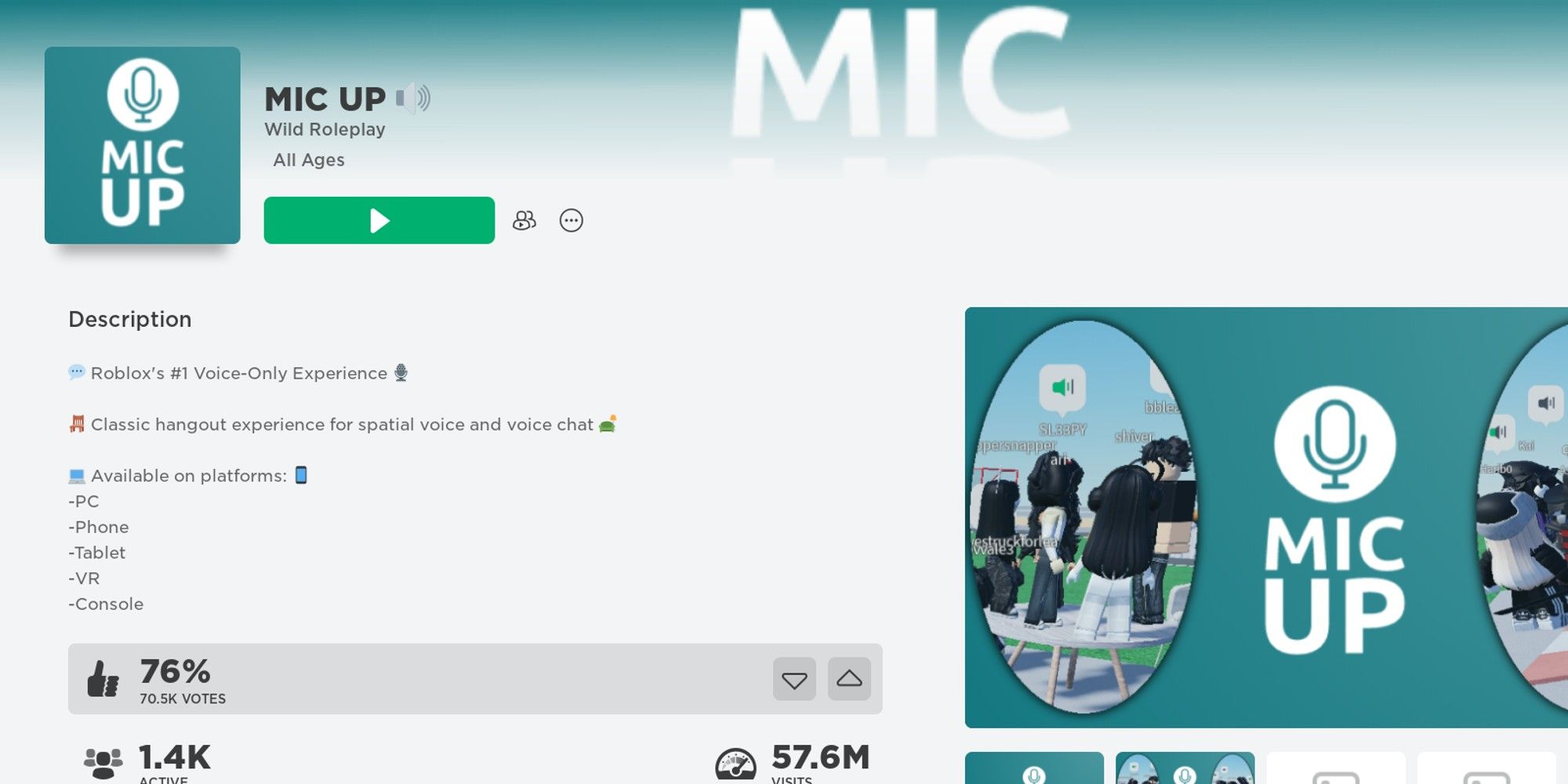
A: No, voice chat (Spatial Voice) is only available in specific Roblox experiences that have enabled and integrated the feature. Look for the microphone icon in the game's description or during gameplay to indicate support. Many popular social and role-playing games now include it for enhanced interaction.
Q: How do I mute myself in Roblox voice chat?
A: While in a voice-enabled Roblox experience, you'll typically see a small microphone icon next to your avatar or on your screen. Clicking this icon will mute or unmute your microphone. You can also temporarily disable voice chat in your Roblox privacy settings if needed.
Q: Why is my voice chat echoing in Roblox?
A: Echoing usually occurs if your microphone picks up sound from your speakers. To fix this, try using headphones, lowering your speaker volume, or adjusting your microphone's sensitivity in your system sound settings. Some gaming headsets also have built-in echo cancellation features.
Q: Can I block specific players from voice chatting with me?
A: Yes, within a Roblox experience, you can typically mute individual players you interact with. If you block a user on Roblox, they will also be unable to communicate with you via voice chat. This provides a layer of control over who you hear and interact with in-game.
Q: Is Roblox voice chat safe for adults?
A: Roblox employs age verification and moderation to enhance safety. While it’s generally safe, like any online platform, it relies on users adhering to community standards. You have tools like muting and reporting to manage your experience and ensure a positive environment. Always be mindful of personal information.
Enable Roblox Voice Chat, Adjust Mic Volume Effectively, Troubleshoot Common Audio Issues, Ensure Privacy Settings Are Secure, Optimize In Game Communication, Understand Age Verification for Voice
35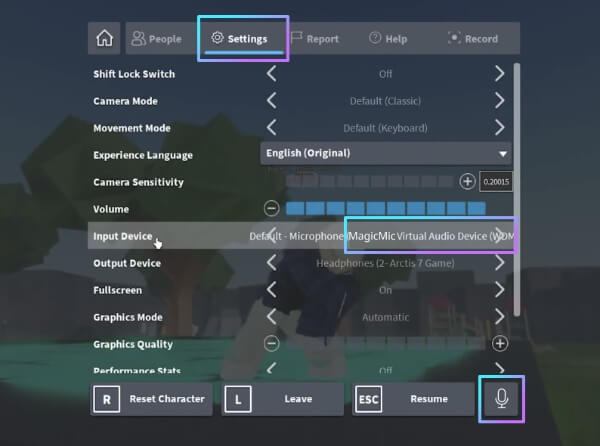


Top 6 Voice Changers For Roblox 2026 Real Time Free To Use Roblox Voice Setting . Client Does Not Have Input Option Even While Having A Microphone . Der Einfachste Weg Und Die F R Open Mic Im Neuesten Roblox 11 . How To Use Roblox Voice Chat With Voicemod 1024x940 . How To Get Voice Chat On Roblox Beebom Choose Mic


How To Fix Roblox Voice Chat Not Working On Windows 11 Turn The Volume Up By Clicking The Plus Icon Next To It . How To Get Voice Chat On Roblox For Mobile And PC IGeeksBlog Changing Roblox Input Device . Why Is My Mic Not Working On Roblox Solutions Fixes V4 460px Why Is My Mic Not Working On Roblox Step 1 Version 2 . Roblox OS Settings Explained Simply 3 Click Start Test Button Under Input Settings Of Your Main Microphone Device . 7 Ways To Fix Roblox Voice Chat Not Working On Windows PCs Input Device Options Roblox Voice Chat Not Working 780x439

:max_bytes(150000):strip_icc()/Roblox-microphone-toggle-dc5112a0520b4494a4a3acf74872c09b.jpg)

How To Turn On Mic In Roblox 2026 YouTube . How Do You Turn Your Mic On In Roblox Roblox Microphone Toggle . How To Turn On The Mic In Roblox For Android And IPhone Images 5 1 1144x644 . How To Actually Get Or Enable Mic Or Vc On Roblox Mobile Enable . Client Does Not Have Input Option Even While Having A Microphone



How To Enable Voice Chat In Roblox RoCodes Gg RoCodes 1656 How To Enable Voice Chat In Roblox . A K Mikrofon Gecesi Sesli Sohbet Roblox NoFilter. How To Actually Turn On Microphone Input On Roblox Mobile Or Pc . Mic Games In Roblox At Harrison Fong Blog Mic Up Roblox . How To Turn On The Mic In Roblox For Android And IPhone Images 6 1 1144x644

Cara Mic Di Roblox Untuk Voice Chat OAtekno Com Mic Di Roblox . How To Get Voice Chat In Roblox Step By Step Pictures Rob6 768x399 . Cara On Mic Di Roblox Buat Si Paling Newbie Laman 2 Pasundan Ekspres Rblx.webp. How To Use A Microphone In Roblox Step By Step Hollyland Image 138 . How To Turn On The Microphone On Roblox Voice Chat


How To Turn On The Microphone On Roblox Voice Chat Enable Roblox App. Roblox Mic Troubles That Red Triangle Explained . How To Turn On The Microphone On Roblox Voice Chat Image 139 . How To Use Vc In Roblox Platform Usage Support Developer Forum Roblox . Why Is Microsoft Roblox Not Working Solutions For 2026 Roblox Mic Not Working



Tutorial On Mic Di ROBLOX 2026 Terbaru YouTube . Fix Discord Error 3002 Microphone Not Detected Quick Guide How To Fix Voicemod Virtual Microphone Not Working On Roblox . How To Enable And Set Up Mic On Roblox PC Voice Chat Tutorial YouTube . How To Allow Microphone Access On Roblox YouTube . Roblox Mic Your Voice In The Metaverse