Unleash your gaming laptop's true potential and ensure you are getting the best value for your money. This comprehensive guide on how to test gaming laptop performance is tailored for the average gamer, often balancing work, family, and a passion for immersive digital worlds. We dive deep into practical, easy-to-follow steps to benchmark your CPU, GPU, RAM, storage, and thermals. Learn how to identify bottlenecks, optimize settings, and ensure your investment delivers peak performance for your favorite titles and social gaming sessions. Avoid common pitfalls like unexpected frame drops or overheating, and keep your machine running smoothly for those precious gaming hours. With clear instructions and actionable advice, you will be equipped to diagnose issues, maintain optimal performance, and enjoy a seamless gaming experience that fits your lifestyle. Get ready to game smarter, not harder, and ensure every moment counts.
What are the first essential steps to test a new gaming laptop right out of the box?
When you first unbox your gaming laptop, begin by checking for any physical damage. Then, ensure all drivers are updated to their latest versions, especially the GPU driver from NVIDIA or AMD's official sites. Next, run basic benchmarks like 3DMark or Cinebench to establish a baseline performance and monitor initial temperatures using HWMonitor to confirm your system is running as expected before heavy use.
How can I reliably check my gaming laptop's FPS performance in real games, not just benchmarks?
To reliably check your gaming laptop's FPS in real games, use in-game FPS counters, or overlays from software like MSI Afterburner (with RivaTuner Statistics Server) or NVIDIA GeForce Experience's performance overlay. Play a demanding section of your favorite game for at least 15-20 minutes, noting average and minimum FPS to understand actual gameplay performance and identify any stuttering.
What are the common signs of a struggling or underperforming gaming laptop?
Common signs of a struggling gaming laptop include consistent low frame rates in games it should handle, frequent stuttering or freezing, excessive fan noise, high temperatures (CPU/GPU over 90C), slow load times, and unexpected crashes to the desktop. These often indicate thermal throttling, driver issues, or hardware limitations.
Is it normal for gaming laptops to get hot, and at what temperature should I worry?
Yes, it's normal for gaming laptops to get hot under load due to powerful components in a compact chassis. CPU and GPU temperatures typically range between 70-85 degrees Celsius during gaming. You should start to worry if temperatures consistently exceed 90-95 degrees Celsius, as this can lead to performance throttling and long-term hardware degradation.
How can I test my gaming laptop's battery life specifically for gaming sessions?
To test gaming battery life, fully charge your laptop, unplug it, and then play a moderately demanding game for about 30-60 minutes while monitoring the battery percentage drop. Keep in mind that gaming laptops are not designed for long gaming sessions on battery, usually lasting only 1-2 hours due to high power consumption.
What specific settings or adjustments should I check in Windows to optimize my gaming laptop for testing?
Before testing, ensure Windows Power Mode is set to 'High Performance' when plugged in. Disable 'Game Mode' if it causes issues, or keep it on if it helps. Close all unnecessary background applications and overlays. Make sure your display refresh rate is set to its maximum (e.g., 144Hz) in Windows Display Settings for accurate frame rate perception during tests.
How important are driver updates when testing a gaming laptop, and how often should I check?
Driver updates are extremely important when testing a gaming laptop, especially for the GPU. Outdated drivers can severely impact performance and stability, often causing lower FPS or crashes. You should check for new GPU drivers at least once a month, or whenever a new major game releases, using NVIDIA GeForce Experience or AMD Radeon Software.
Hey fellow gamers! We know the drill. You have just snagged a sweet gaming laptop, or perhaps your trusty machine is starting to feel a bit sluggish. Juggling work, family, and life means your gaming time is precious. The last thing you want is a frustrating experience filled with stuttering frames, overheating, or unexpected crashes. You just want to unwind, connect with friends, or conquer new challenges without technical headaches.
This guide is your go-to resource for understanding exactly how to test gaming laptop performance like a pro, ensuring you get the most out of your hardware investment. We are not talking about complex tech jargon here; this is about practical, actionable steps that any gamer can follow. We will cover everything from essential benchmarks to thermal checks, display quality, and network stability, all designed to help you pinpoint problems, optimize your setup, and keep your gaming sessions smooth and enjoyable. In 2026, where 87% of US gamers play regularly and social connections through games like cross-play titles are paramount, optimizing your rig means optimizing your fun. Let us make sure your gaming laptop is always ready for action!
Why is Testing Your Gaming Laptop Performance So Important?
Testing your gaming laptop is crucial for several reasons, primarily to ensure you are getting the performance you paid for and to catch potential issues before they ruin your gaming experience. It helps you understand your system's capabilities, diagnose problems, and confirm stability.
Without proper testing, you might be unknowingly suffering from underperformance, thermal throttling, or even hardware defects. Regular checks help maintain your machine, extend its lifespan, and ensure those precious gaming hours are spent enjoying the game, not troubleshooting. Think of it as a pre-flight check before you jump into your favorite virtual world. With more and more gamers balancing intense titles with casual social games, a reliable machine is key to consistent fun.
What Essential Software Do You Need to Test Your Gaming Laptop?
Having the right tools is half the battle when it comes to effectively testing your gaming laptop. These software utilities will provide invaluable data on your system's performance, temperatures, and overall stability.
Benchmarking Tools: For CPU and GPU testing, 3DMark, Cinebench, and Unigine Heaven or Superposition are industry standards. They push your hardware to its limits and give you scores to compare against similar systems.
Monitoring Software: HWMonitor or MSI Afterburner are excellent for real-time monitoring of CPU/GPU temperatures, clock speeds, and usage while gaming or benchmarking. This is vital for thermal checks.
Storage & RAM Tools: CrystalDiskMark tests your SSD/HDD read/write speeds, while MemTest86 can check for RAM errors. Windows Task Manager also offers basic insights.
Driver Management: Always keep your GPU drivers updated through NVIDIA GeForce Experience or AMD Radeon Software. Outdated drivers are a common performance killer.
Stress Test Utilities: Prime95 for CPU and FurMark for GPU can help ensure stability under heavy load, though use these with caution and monitor temperatures closely.
How Do You Benchmark CPU and GPU Performance?
Benchmarking your CPU and GPU is fundamental to understanding your gaming laptop's raw processing power and graphics capabilities. These tests simulate intense workloads, providing objective scores and identifying potential performance bottlenecks.
For the CPU, tools like Cinebench R23 will render a complex scene, measuring your processor's multi-core and single-core performance. A higher score indicates a more powerful CPU, which is crucial for game physics, AI, and background tasks. For the GPU, 3DMark (Time Spy or Fire Strike) or Unigine Superposition run graphically intensive scenarios. These benchmarks provide an overall score, frames per second (FPS) averages, and detailed statistics, allowing you to compare your laptop's performance against others with similar specifications. Run these benchmarks multiple times to ensure consistent results, as initial runs can sometimes be lower due to background processes.
How to Monitor Thermals and Prevent Overheating?
Thermal management is perhaps the most critical aspect of how to test gaming laptop performance, as overheating can severely throttle performance and shorten hardware lifespan. Gaming laptops, by their nature, pack powerful components into compact spaces, making heat dissipation a constant challenge.
Use monitoring software like HWMonitor or MSI Afterburner to keep a close eye on your CPU and GPU temperatures while gaming or running benchmarks. Ideal gaming temperatures for both typically hover between 70-85 degrees Celsius, though occasional spikes up to 90-95 degrees might occur under extreme load. If your temperatures consistently exceed 90-95 degrees, especially for the CPU, you are likely experiencing thermal throttling, where the system reduces clock speeds to prevent damage. To mitigate this, ensure your laptop's vents are clear, use a cooling pad, clean dust from fans regularly, and consider undervolting your CPU or adjusting fan curves if comfortable with advanced settings. Consistent high temperatures are a major pain point for busy gamers who just want their laptop to work.
What About Display and Audio Quality Checks?
Beyond raw performance, the quality of your display and audio significantly impacts your gaming immersion. These are often overlooked but crucial elements of how to test gaming laptop satisfaction.
For the display, check for dead pixels by running a solid color test (many free online tools exist). Look for backlight bleed, especially on dark screens, and assess color accuracy and contrast through various images and videos. Ensure the refresh rate is set correctly in Windows Display Settings (e.g., 120Hz, 144Hz) for smooth motion. Regarding audio, test both the built-in speakers and your preferred headset. Play a variety of sounds and game audio to check for clarity, distortion, and proper channel separation. Ensure your audio drivers are up-to-date. In an era where social gaming and in-game communication are key, clear audio is non-negotiable.
How Do You Test Storage Speed and RAM Performance?
Slow storage and insufficient or faulty RAM can create significant bottlenecks, leading to longer loading times and overall system sluggishness. Testing these components is a vital part of a thorough gaming laptop assessment.
Use CrystalDiskMark to measure the read and write speeds of your laptop's SSD or HDD. For gaming, an NVMe SSD is highly recommended, offering sequential read speeds upwards of 3000 MB/s, drastically cutting down game load times compared to older SATA SSDs or traditional HDDs. If you have an HDD, ensure its speeds are within expected ranges (around 100-150 MB/s). For RAM, check your installed amount and speed (e.g., 16GB DDR4 3200MHz) in Task Manager or CPU-Z. While simple checks are fine, for deep error detection, MemTest86 is the gold standard. Run it overnight to catch any subtle RAM issues that could cause instability or crashes, impacting your ability to enjoy games or even stream on Discord.
Is Your Network Ready for Online Gaming?
In today's interconnected gaming world, a stable and fast internet connection is just as important as powerful hardware, especially for multiplayer titles, cloud gaming, and downloading massive updates. Network performance is a key factor in how to test gaming laptop readiness for modern play.
Start with a simple speed test using a reliable online service like Speedtest.net. Focus on download speed (for game updates and streaming), upload speed (for streaming your gameplay or video calls), and critically, latency (ping). For competitive online gaming, a ping under 50ms is ideal. Additionally, test your Wi-Fi signal strength and stability. If possible, connect via Ethernet for the most reliable connection. Ensure your network drivers are current and consider optimizing your router settings for gaming (e.g., Quality of Service or QoS). With social gaming and esports viewing trending heavily, a robust network ensures you are always connected and competitive.
Checking Battery Life and Peripherals
While gaming laptops are primarily used plugged in, assessing battery life and peripheral functionality is still essential, especially for portability and ensuring a complete system check.
To test battery life, unplug your laptop and perform a few everyday tasks, like web browsing or video playback, noting how long it lasts. For gaming, understand that battery life will be significantly shorter due to high power draw. Tools like BatteryInfoView can give you detailed data on battery wear level. For peripherals, systematically test every port: USB, HDMI, DisplayPort, and headphone jacks. Plug in various devices to confirm they are recognized and function correctly. Check the keyboard for any sticky or unresponsive keys and the trackpad for smooth operation. Ensure your webcam and microphone work well for those Discord chats or streaming sessions, a vital part of balancing gaming with life and social interactions.
Optimizing Your Gaming Laptop for Peak Performance
Once you have thoroughly tested your gaming laptop, the next step is to optimize it. Optimization is about fine-tuning your system to ensure everything works in harmony, delivering the best possible frame rates and responsiveness.
First, always keep your operating system and drivers up to date. NVIDIA GeForce Experience and AMD Radeon Software offer game-ready drivers that significantly boost performance in new titles. Second, manage your background processes. Close unnecessary applications running in the background while gaming to free up CPU and RAM. Use Windows Game Mode for a slight boost. Third, adjust in-game settings. Often, a small tweak to shadows, anti-aliasing, or texture quality can yield significant FPS gains without much visual compromise. Finally, consider power settings. Ensure your laptop is set to 'High Performance' when plugged in. For budget-conscious gamers, these optimizations can extend the life and relevance of their current hardware, helping them stay current without constant upgrades.
There you have it. A comprehensive guide on how to test gaming laptop performance and ensure it is always ready for your next adventure. Taking these steps not only extends the life of your machine but also ensures your valuable gaming time is spent on fun and relaxation, not frustration. Remember, a well-maintained laptop is a happy laptop, and a happy laptop means a happy gamer.
What is your biggest gaming challenge? Comment below!
FAQ Section
How often should I test my gaming laptop?
It is recommended to perform a comprehensive test of your gaming laptop every 3-6 months, or whenever you notice a dip in performance, install new hardware, or update major drivers. Quick temperature and FPS checks can be done weekly.
Are free benchmarking tools reliable?
Yes, many free benchmarking tools like Cinebench (CPU), Unigine Heaven/Superposition (GPU), and CrystalDiskMark (Storage) are very reliable and widely used by gamers and professionals alike. They provide accurate data for performance comparison.
What is a good FPS for a gaming laptop?
A good FPS (frames per second) depends on your monitor's refresh rate and the game. For casual gaming, 60 FPS is generally considered smooth. For competitive esports, 120 FPS or higher is preferred, matching high-refresh-rate displays for a significant advantage.
How can I check my laptop's temperature while gaming?
You can check your laptop's CPU and GPU temperatures in real-time while gaming using monitoring software such as HWMonitor, MSI Afterburner, or NZXT CAM. These tools display an overlay or separate window with temperature readings.
My gaming laptop is overheating, what should I do?
If your gaming laptop is overheating, first ensure vents are clear and dust-free. Use a cooling pad, update drivers, and consider reapplying thermal paste if comfortable. Reducing in-game settings or undervolting the CPU can also help manage temperatures effectively.
Can I improve my gaming laptop's performance without upgrading hardware?
Yes, you can improve performance by regularly updating drivers, cleaning out dust, closing background applications, optimizing in-game settings, ensuring proper power management, and defragmenting HDDs (if applicable). These steps can significantly boost FPS and responsiveness.
What is thermal throttling in a gaming laptop?
Thermal throttling is when your laptop's CPU or GPU automatically reduces its clock speed and performance to lower temperatures and prevent damage from overheating. This results in noticeable frame drops and a sluggish gaming experience.
How important is RAM speed for gaming laptops?
RAM speed is moderately important for gaming laptops. While having sufficient RAM (16GB is ideal for most modern games) is crucial, faster RAM speeds (e.g., 3200MHz vs 2666MHz) can offer a noticeable, albeit not always drastic, improvement in minimum FPS and overall system responsiveness, particularly for CPU-intensive titles.
Performance Benchmarking, Thermal Management, Display Quality Check, Storage Speed Test, RAM Verification, Battery Life Assessment, Network Stability Testing, Peripheral Functionality, Driver Updates, Software Optimization
35
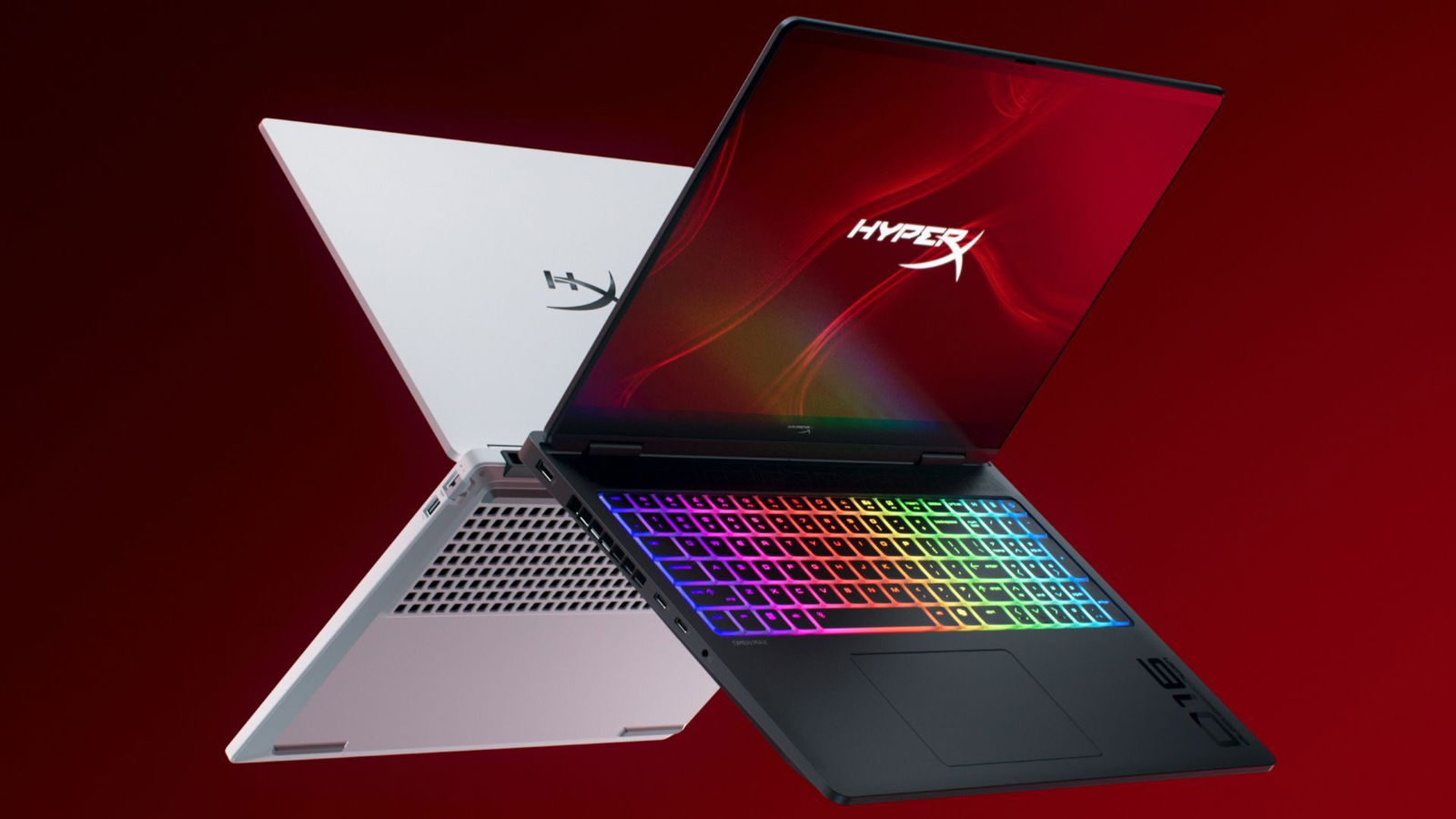



Best Gaming Laptops At CES 2026 RTX 5090 Options Dual Screen Picks Lenovo Legion Pro Rollable Concept. CES 2026 HyperX OMEN Gaming Laptops Have Been Revealed Ces 2026 Hyperx Omen Gaming Laptops Have Been Unleashed 2026 01 03 164747 . Top 10 Gaming Laptops To Buy In 2026 Power Meets Innovation YouTube . CES 2026 Asus ROG Zephyrus Duo Is Finally A Proper Dual Screen Gaming Hero . Best Gaming Laptops 2026 Forbes Vetted 960x0


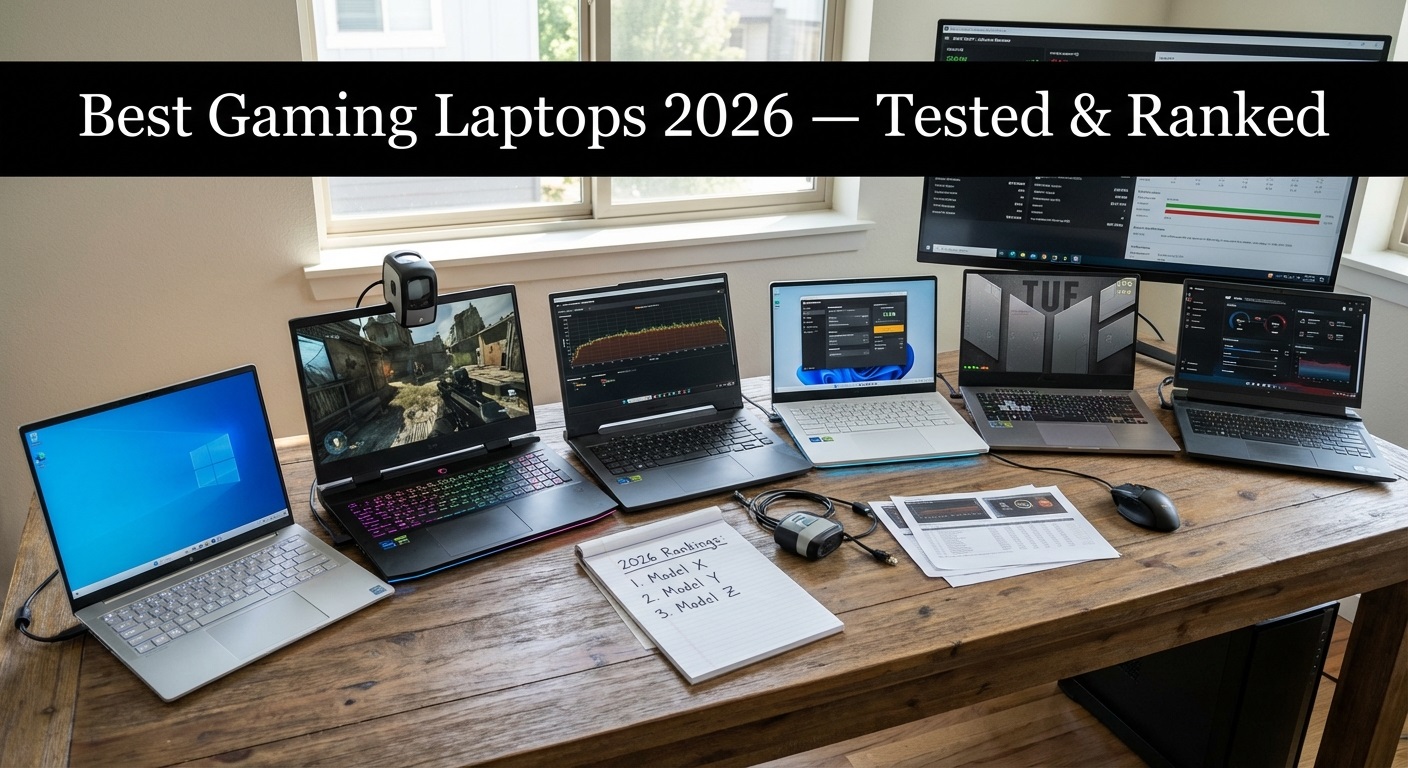
How Much For A PC Gaming Setup Cost Top 3 Gaming Laptops Of 2026 - The Ultimate Guide . Top 10 Best Gaming Laptops To Buy In 2026 Power Performance What S . How To Check If Your Laptop Camera Is Hacked 2026 Guide Best Gaming Laptops . Best Gaming Laptops 2026 Revealed PPT Summary AT Best Gaming Laptops 2026 Revealed Ppt Summary At Slide01 . Best Gaming Laptops 2026 Tested Ranked By Rank Vault Rank Vault 1e538349 E232 415b B646




Best Gaming Laptops For 2026 Top Picks And Reviews Tech In Deep Best Gaming Laptops For 2026 300x300 . Top 5 BEST Gaming Laptops In 2026 YouTube . Gaming Specs Laptop Level Up Your Game Best Gaming Laptops Of Ces 2025 . Best Gaming Laptops For Every Type Of Gamer In 2026. Vote For Your Favorite Steam Machine Front Panel Design And JSAUX Will Lenovo Legion Go Pro Rollable


Best Gaming Laptops In 2026 Life Style Tech And Digital Whisk 1024x559 . CES 2026 All The Key From Tech S Biggest Show Stuff MSI Stealth 16 AI CES 2026 Lead . Laptop RTX 5050 Laptop RTX 5060 Laptop RTX 5070 Laptop RTX 5070Ti 1769392803 . Top 5 Best Gaming Laptops For 2026 SIIT Tech Guest Posts Untitled Design 2026 01 1 . Best Gaming Laptop 2026 Real World Picks I D Actually Buy Gamer Org A Sleek Tech Thumbnail Design Featuring 1024x574




Top 10 Best Gaming Laptops Of 2026 Next Gen Power Revealed YouTube . The Ultimate Buying Guide To Gaming Laptops 2026 Sourav Joshi Vlogs Best Gaming Laptops 2026 . Best Gaming Laptops In 2026 Brand Rankings Streaming Picks Real HP Omen RTX. Best Budget Gaming Laptops 2026 Top Value Picks Best Budget Laptops For Gaming 2026 . Top 5 BEST Gaming Laptops In 2026 Watch This Before Buy YouTube



Best Gaming Laptops In Nepal 2026 Price And Guide GAMING LAPTOPS 1200x675 . CES 2026 Dell Teases New Ultra Thin Entry Level Alienware Gaming Images 3.fill.size . The Best Gaming Laptops And Computers You Can Get On Sale Right Now PCMag 11.fit . How To Optimize Gaming Laptop Performance Complete Guide 2026 How To Optimize Gaming Laptop Performance 768x419 . How Many Watts Does A Laptop Use Gaming Vs Basic Laptops 2026 High Refresh Rate Gaming Laptops


Best Gaming Laptops In 2026 Brand Rankings Streaming Picks Real Msi. Check Out The Latest ROG Gaming Gear Revealed At CES 2026 . Gaming Laptop Buying Guide 2026 Complete Buyer S Guide Gaming Laptop Buying Guide 2026 . 2026 Gaming Laptop Displays Design Battery Life The Complete Buyer 5.1 1 . Best Gaming Laptops Of 2026 Reviewed Gaming Laptop 2026 Review.webp